Capstone Project
Role: Practicing UX Designer
Duration: 6+ Months
Tools: Figma, Miro, Zeplin
As a practicing UX designer, I have worked on a capstone project which is a cross-platform cloud gaming app. Introducing Fuze, a platform for connecting gamers of all devices online to play with each other.
The name Fuze is based on the term, “fusion” which is a blend of different elements. In this case, it’s devices. Video gamers will be able to access the app where available on their devices including but not limited to: mobile phone, computer, handheld gaming console, and home console.

Problem Statement
Everyone of all ages enjoys playing games. This goes without saying that a huge segment of the gaming market is video games. We live in an increasingly connected world, and video gamers love to play together online with their friends/family on a daily basis. The most common issue is that their devices would not be compatible with each other and they would have to purchase the same product to play together online.
This is an opportunity to help connect people of all devices, and allow them to enjoy playing together without barriers.
Research + Key Findings
Key finding #1 - User Need
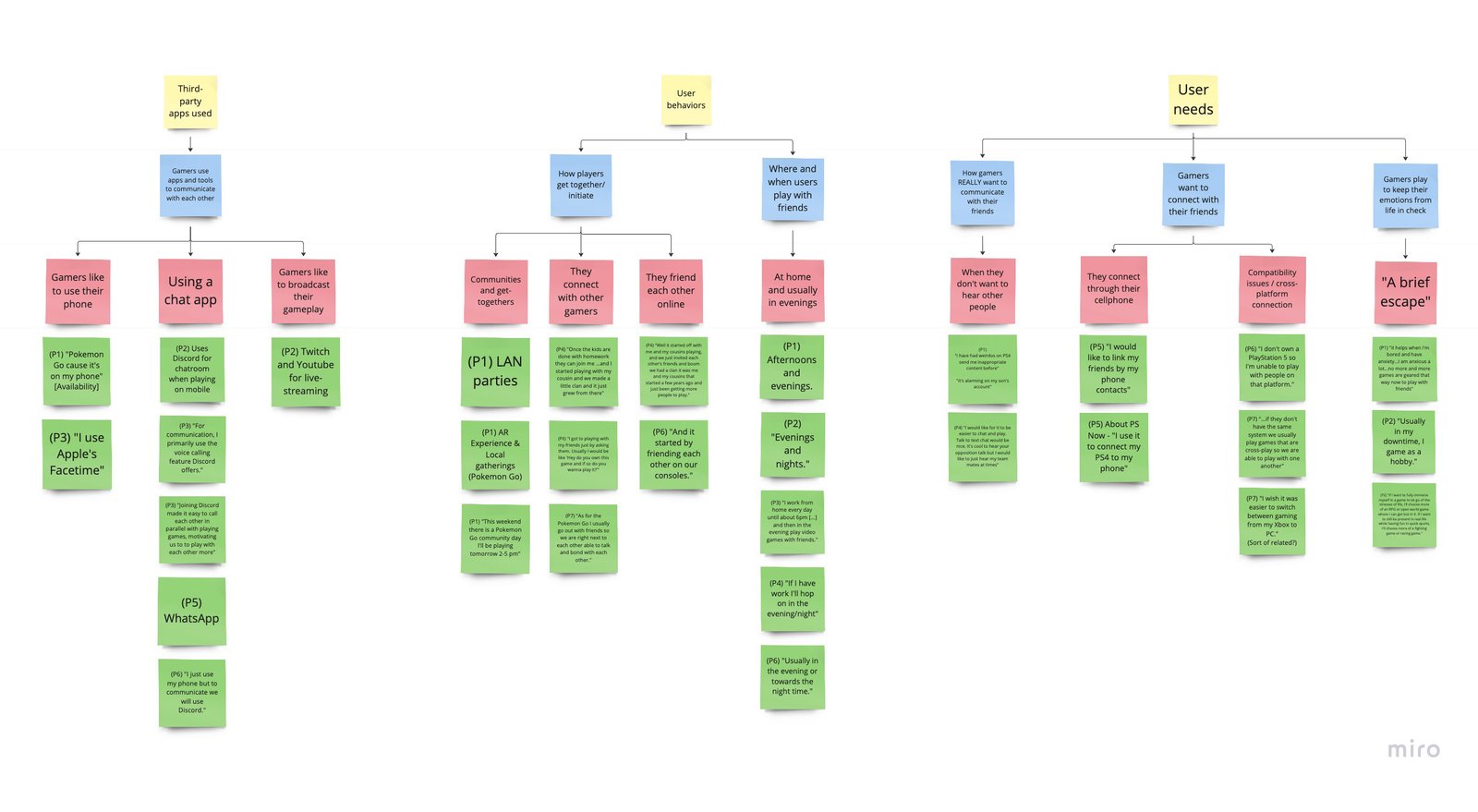
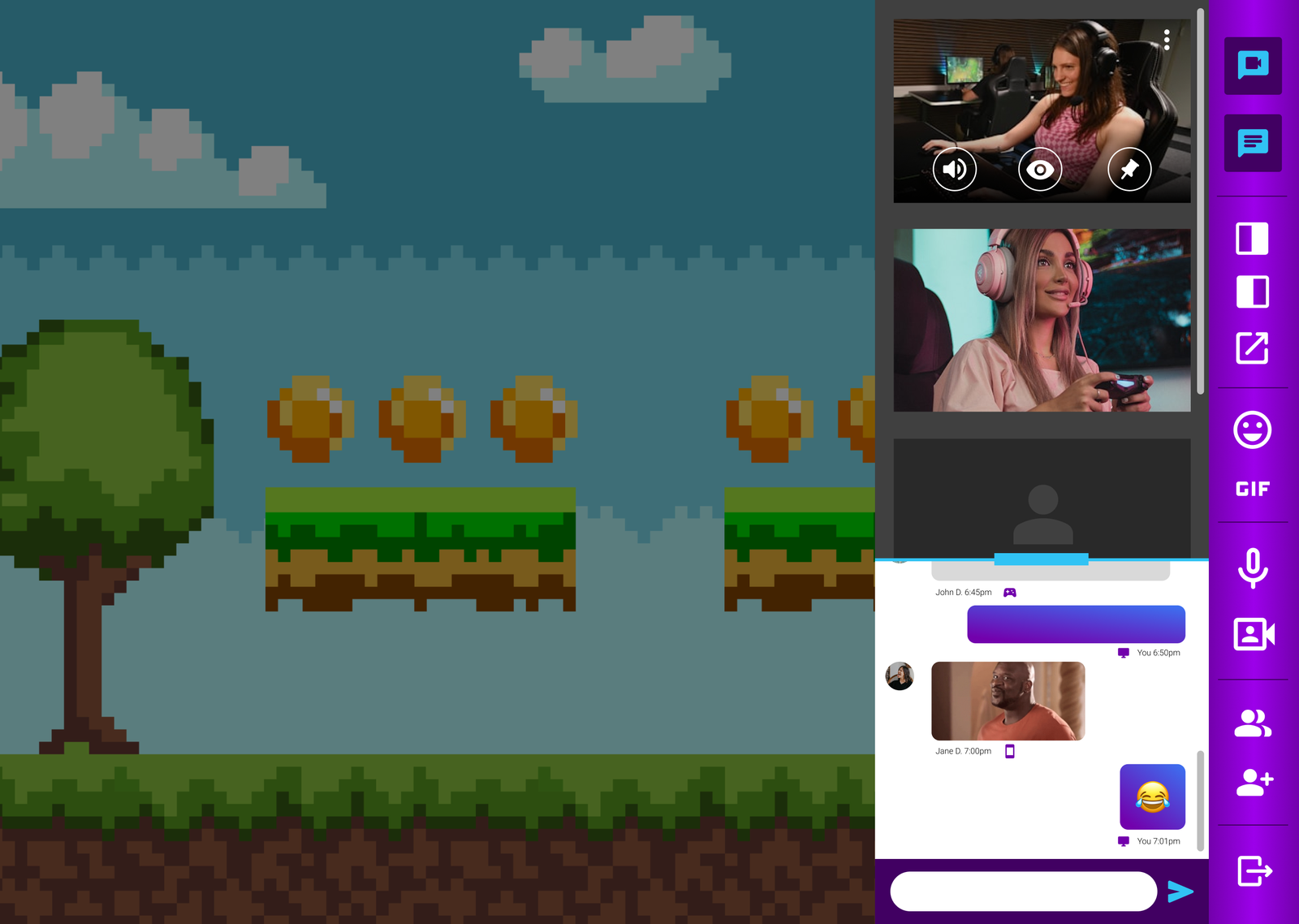
Gamers want to keep a close connection with their friends when they play games together online. Most of them in the study uses a text-based app on their phones such as Discord and uses a camera and headset.
Key finding #2 - User Behavior
A significant number of participants prefers to play with other players in real life or with those they know firsthand. It’s usually with family, friends or people they met at gaming events.
Key finding #3 - User Behavior
Four out of the seven participants use their phone to communicate and play with their friends.
User Analysis
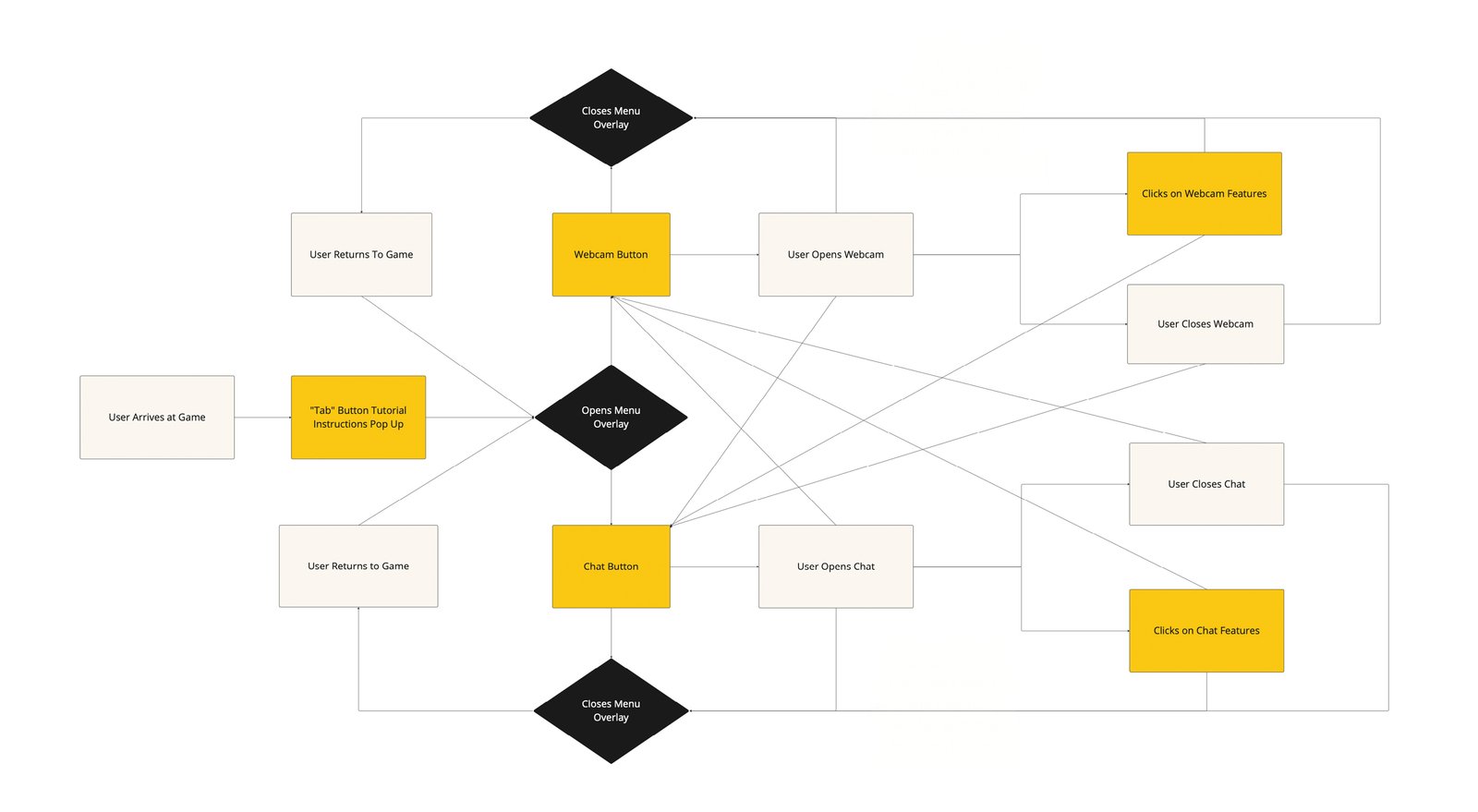
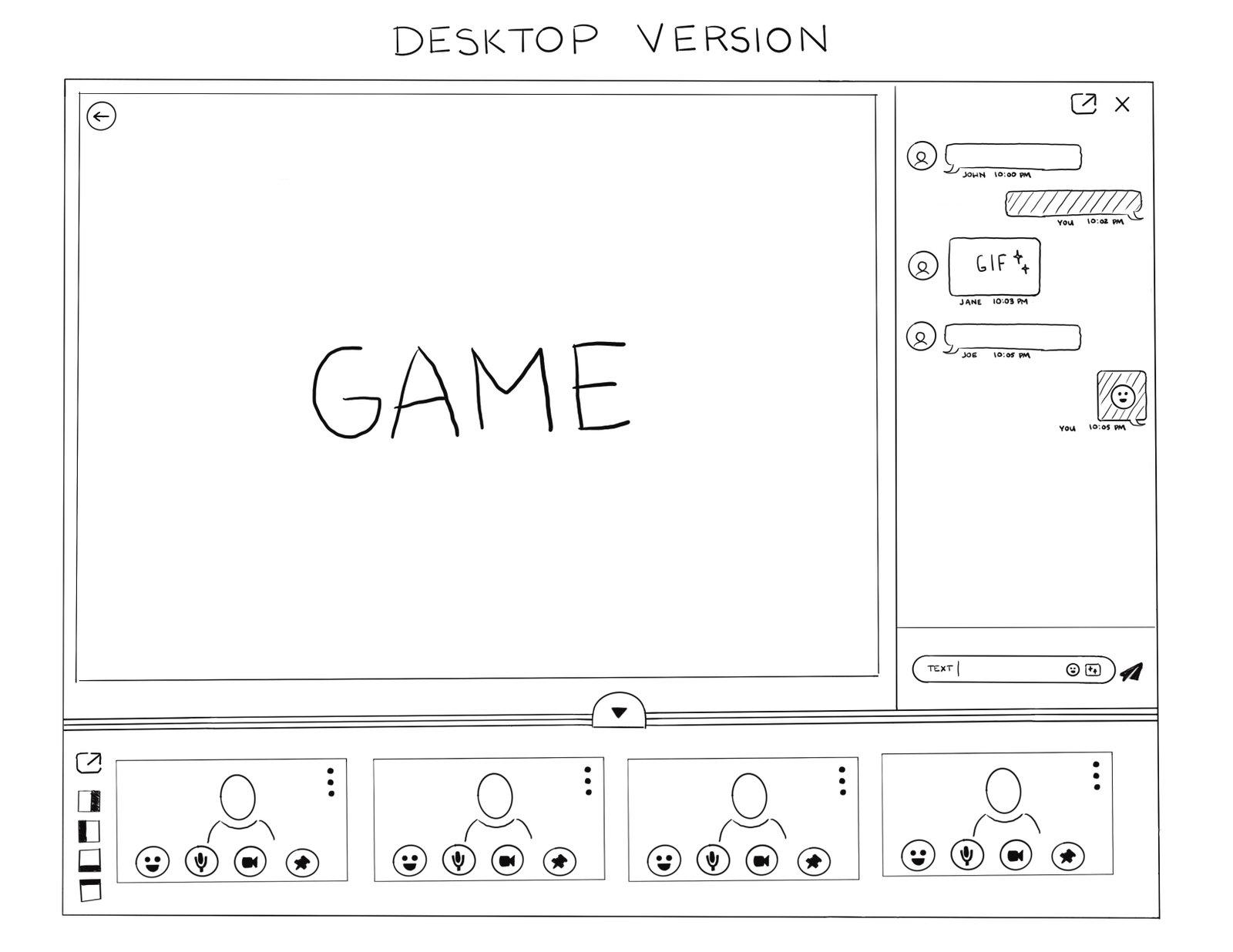
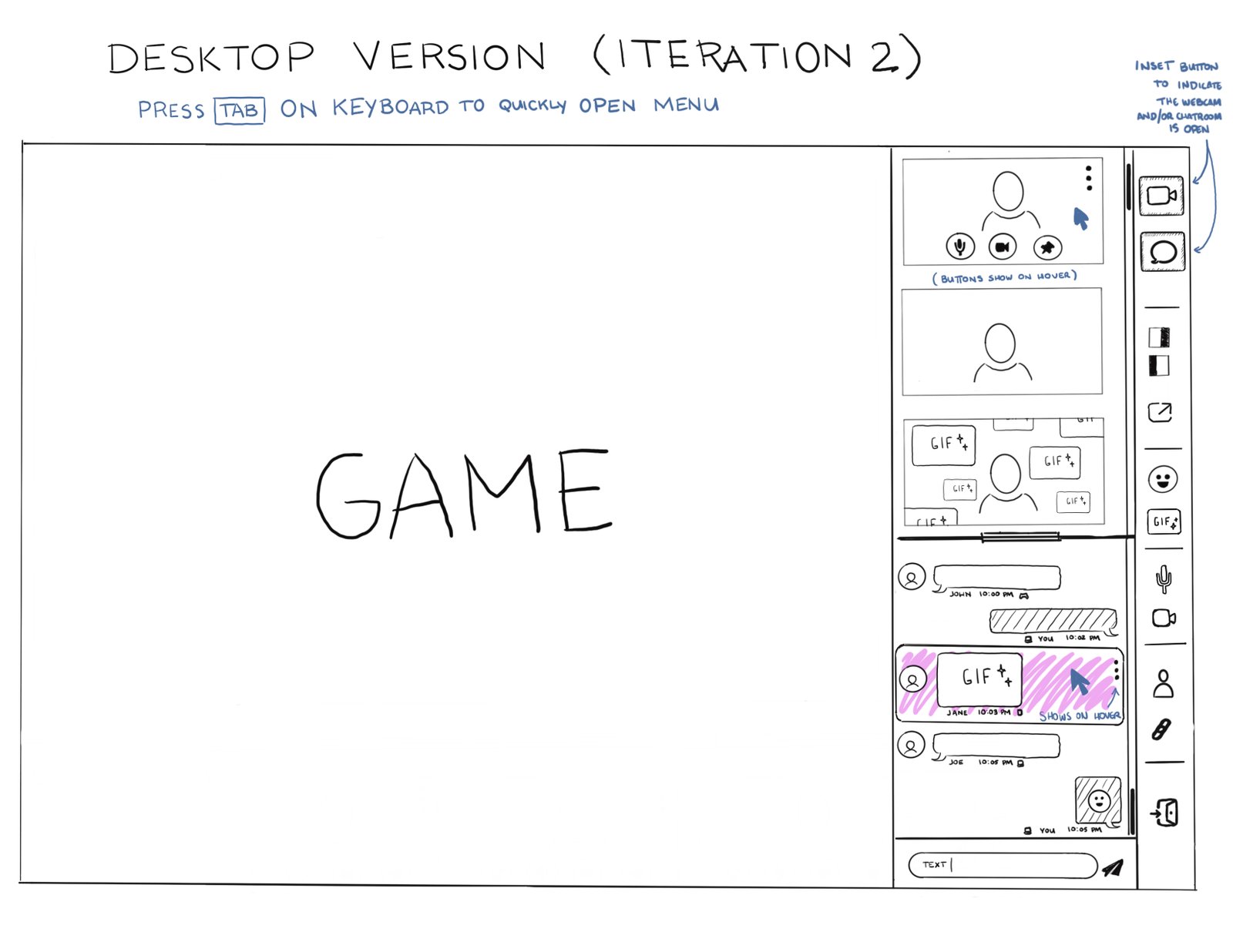
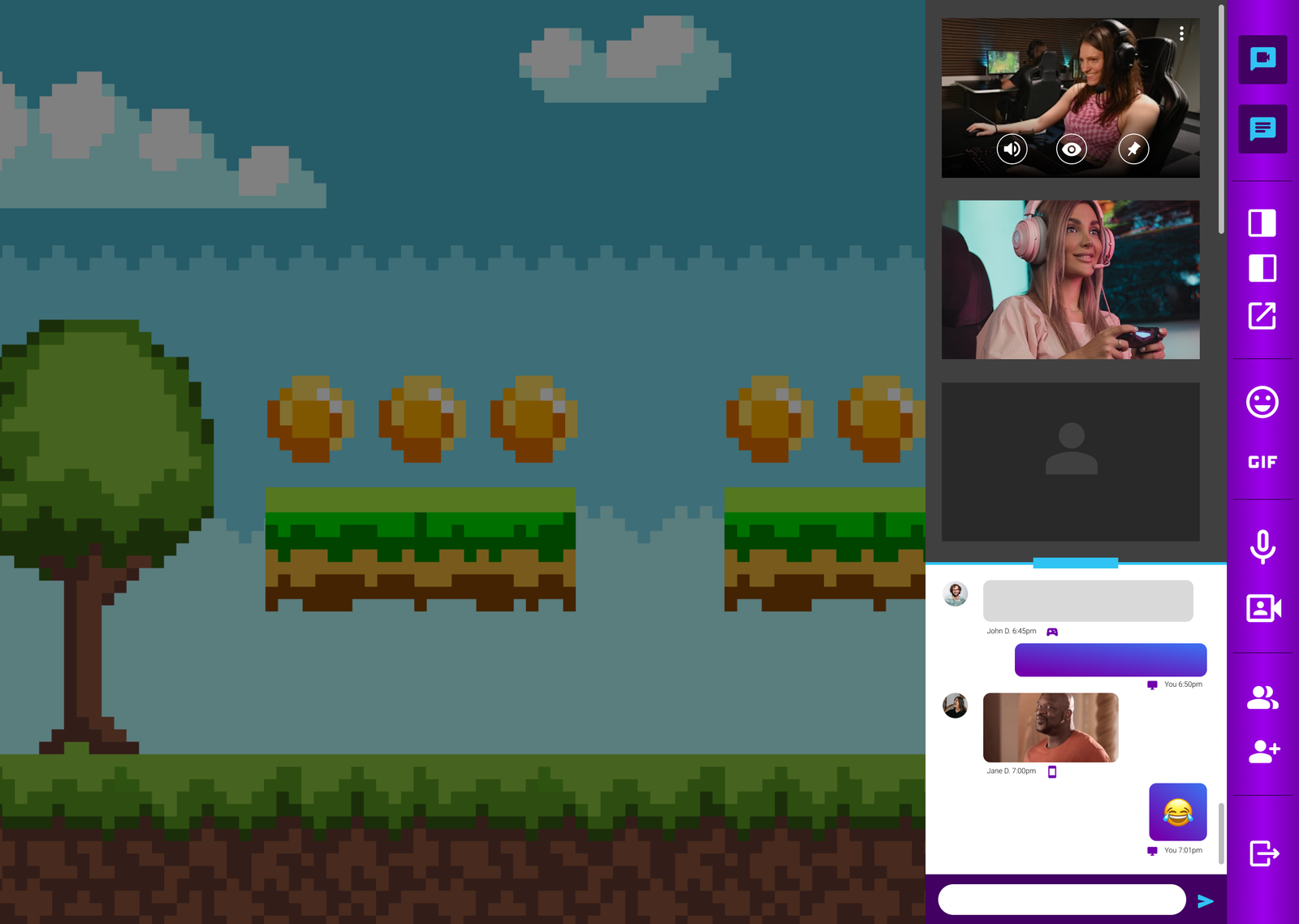
Based on the user need, the app will be used between different systems be it a phone, console, or desktop computer to help keep people connected. It will provide camera and chat options along with the game window.
Based on the user behavior, users will have freedom to select who to interact with online when they play games together.


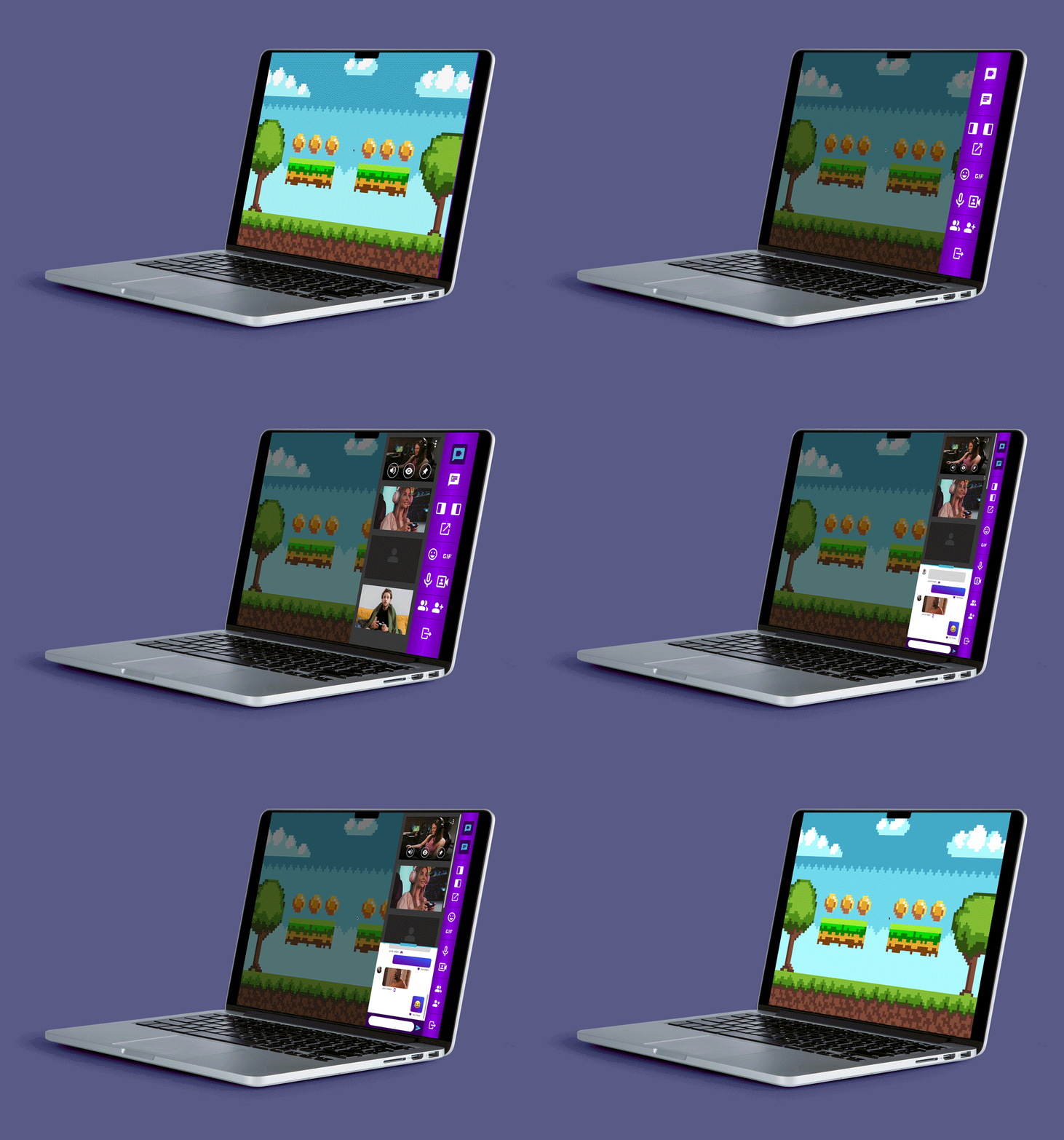
Prototyping
A few iterations later, as it started coming together, I decided to have the product be accessible to more users. Accessibility is a critical part of how a product is used because everyone’s needs are different. So we could say that what works for one person may not work for another person.
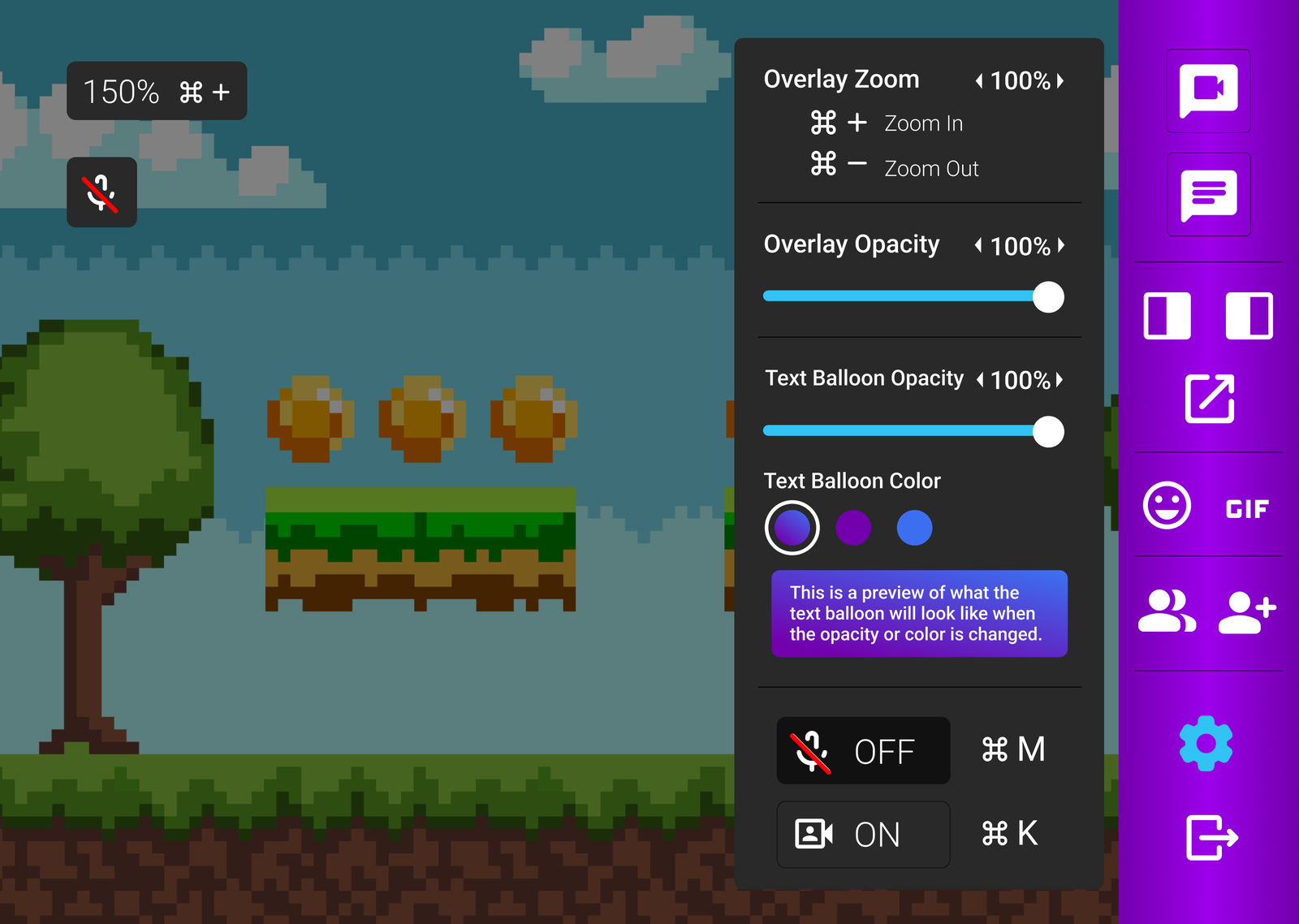
I have started with a zoom UI feature for people with vision difficulties. A simple keyboard shortcut to zoom in and zoom out is included.
User Feedback
Only 40% of users (2 out of 5) are able to zoom in using their keyboards because of their familiarity with shortcuts.
Not every test is expected to go smoothly which is why it is called a test - to understand the behaviors of the user better. The result from the last prototyping session is often the users are struggling to find the option to zoom in and out the UI even though it’s a standard setup by keyboard shortcut.
One also mentioned that the overlay, when opened, blocks a good chunk of the gaming window and suggested that the overlay be somewhat transparent so they can see the game better.
Post-Testing Iteration
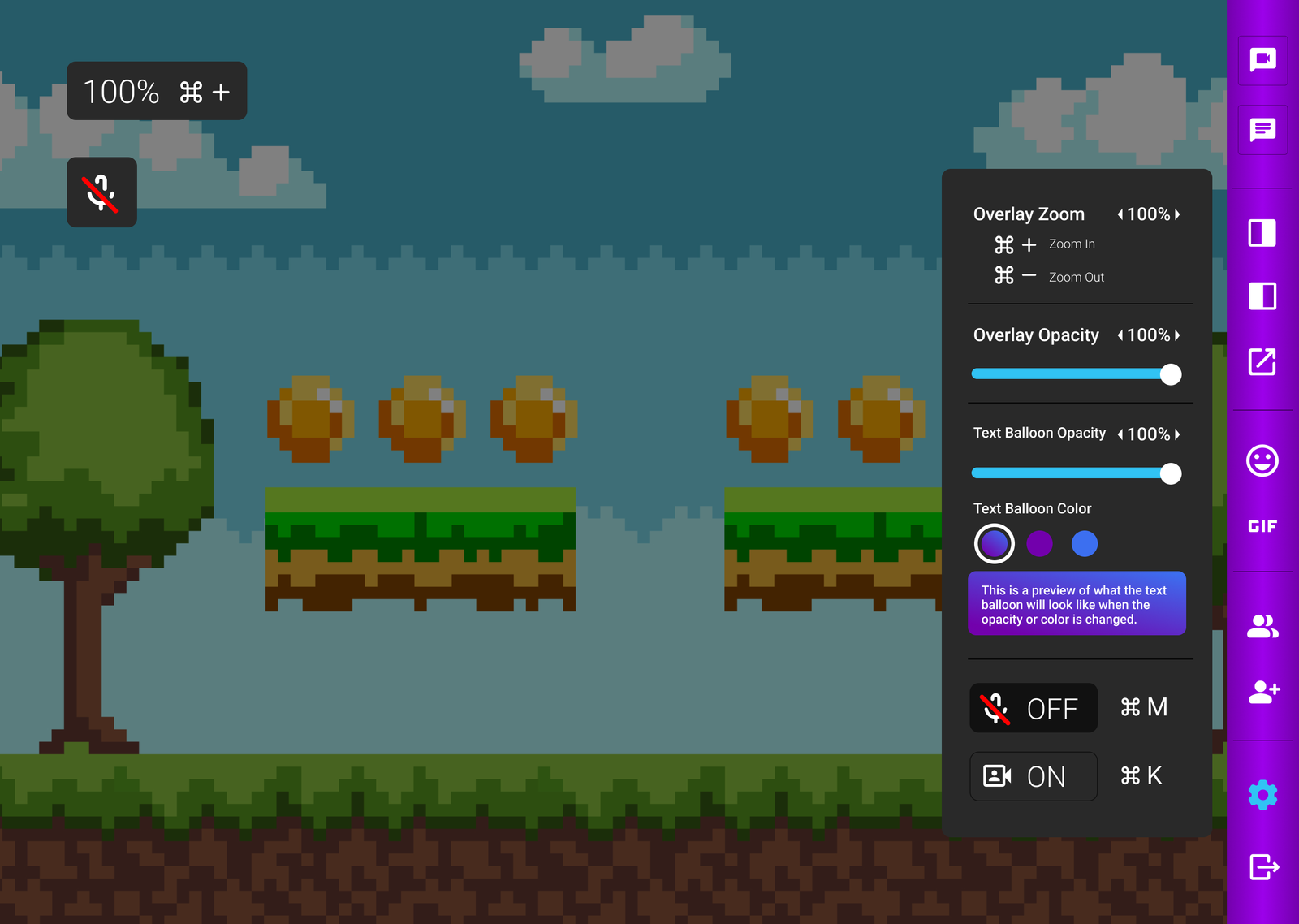
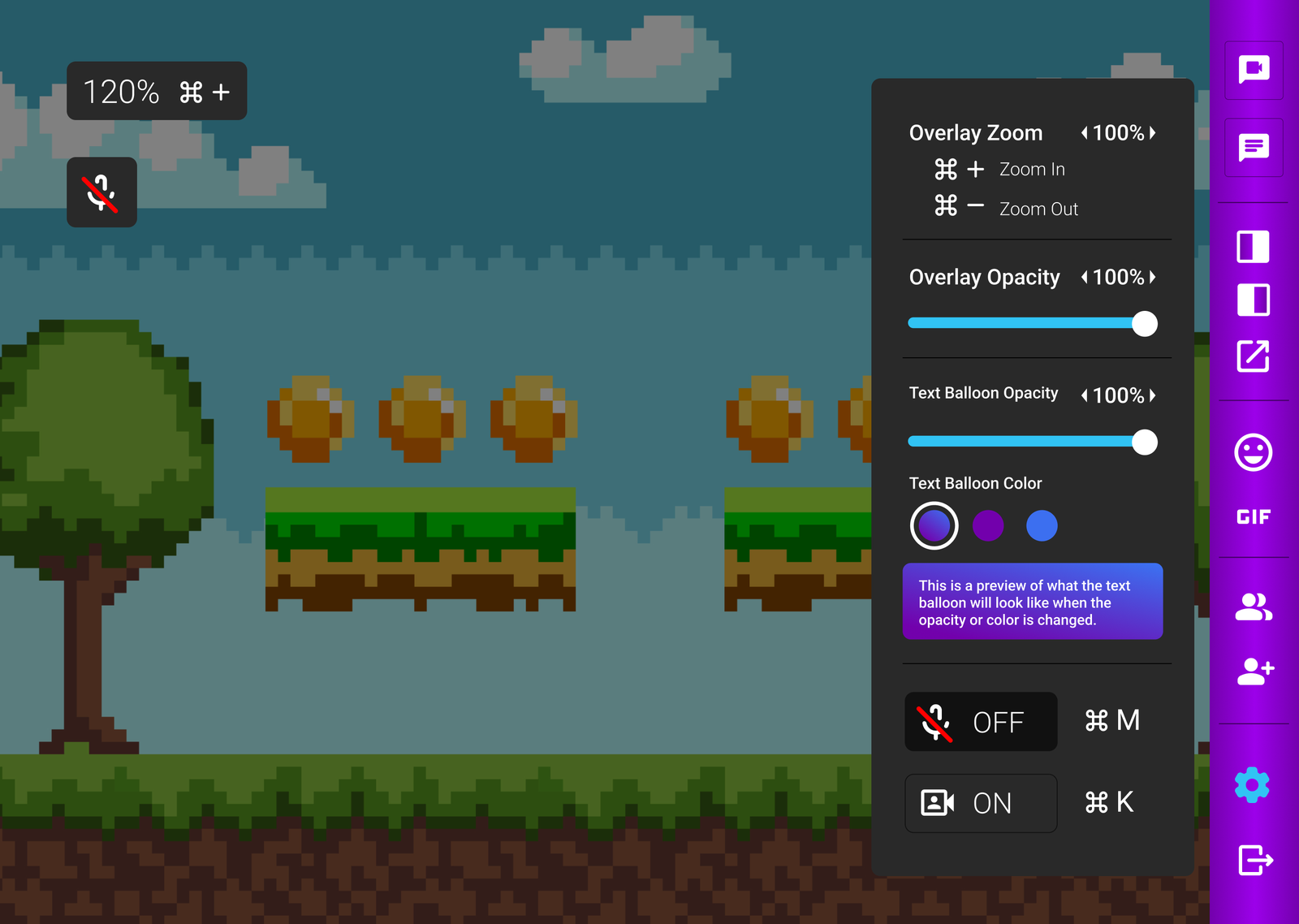
After testing and collecting results, the best way to approach the problem of finding the Zoom UI option is to put it under a Settings panel. Keyboard shortcut hints are added.
Also, a new Settings panel allows the opportunity to add more customization to the overlay to fit the needs of every user, such as an option to change the opacity of the overlay and more.
To help show the user of any change to the overlay after a keyboard shortcut, a brief toaster will pop up after the change. For example, when there is a change to the Zoom UI feature such as enlargement, the toaster will show where the UI size is currently at.
Overview
What I learned from this project is that it’s imperative that the users are able to identify and know where to find without assistance when and how they want to use the overlay’s features so they’ll be able to enjoy playing games together online without fumbling among the controls.
As a result of feedback and further iteration, this is a product that everyone want to use to be able to play games together online without barriers, beyond device incompatibility and having a disability.